Speak your prayers instead of typing — voice-to-text throughout the app, handled by your device’s operating system.
Where You Can Use Voice Input
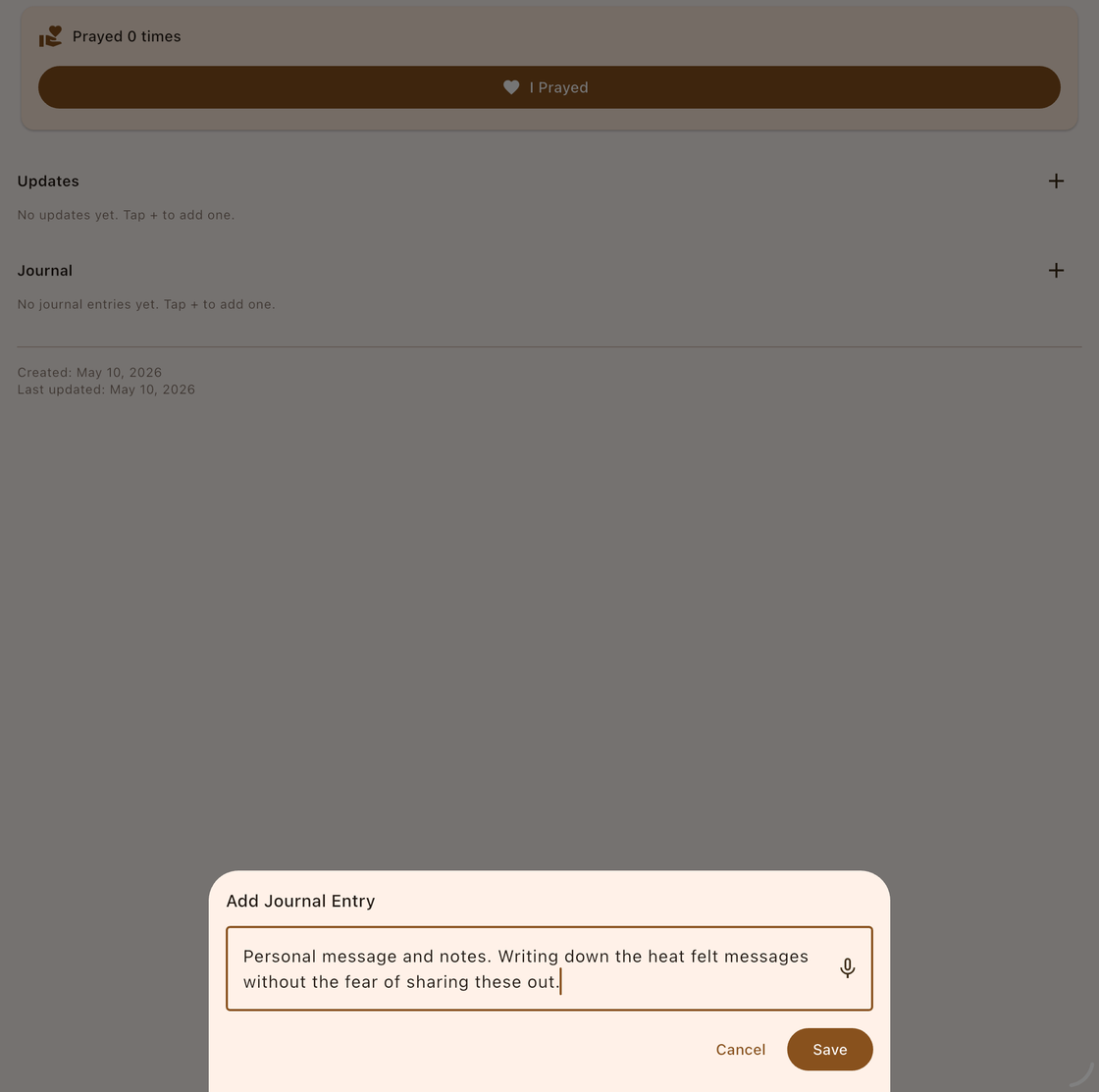
Most text fields in Answered List support speech-to-text. Look for the microphone icon  on the following fields:
- Prayer title and description
- Answer note
- Journal entries
- Search

How It Works
- Tap the microphone icon next to a text field.
- Speak naturally — your words are converted to text by your device’s speech recognition.
- The transcribed text appears in the field, ready for you to review or edit.
Privacy
Speech recognition is handled by your device’s operating system (Apple or Google), not by Answered List. Audio may be processed by Apple’s or Google’s cloud-based speech recognition services depending on your device settings. Answered List does not receive, intercept, or store audio data — only the resulting transcribed text is kept locally as part of your prayer. Please refer to Apple’s Privacy Policy or Google’s Privacy Policy for information on how they process speech data.
Mixing Voice and Keyboard
Voice input works alongside all text input. You can type part of a prayer, tap the microphone to speak the rest, and then continue typing — use whatever combination feels most natural.