Keep your most personal prayers protected with biometric authentication.
Accessing Private Prayers
Tap the lock icon in the top-right corner of the Home or Prayers screen to access your private prayers. You must authenticate with one of the following methods:
- Face ID
- Fingerprint (Touch ID)
- Device passcode
After successful authentication, a dedicated screen appears showing only your private prayers.
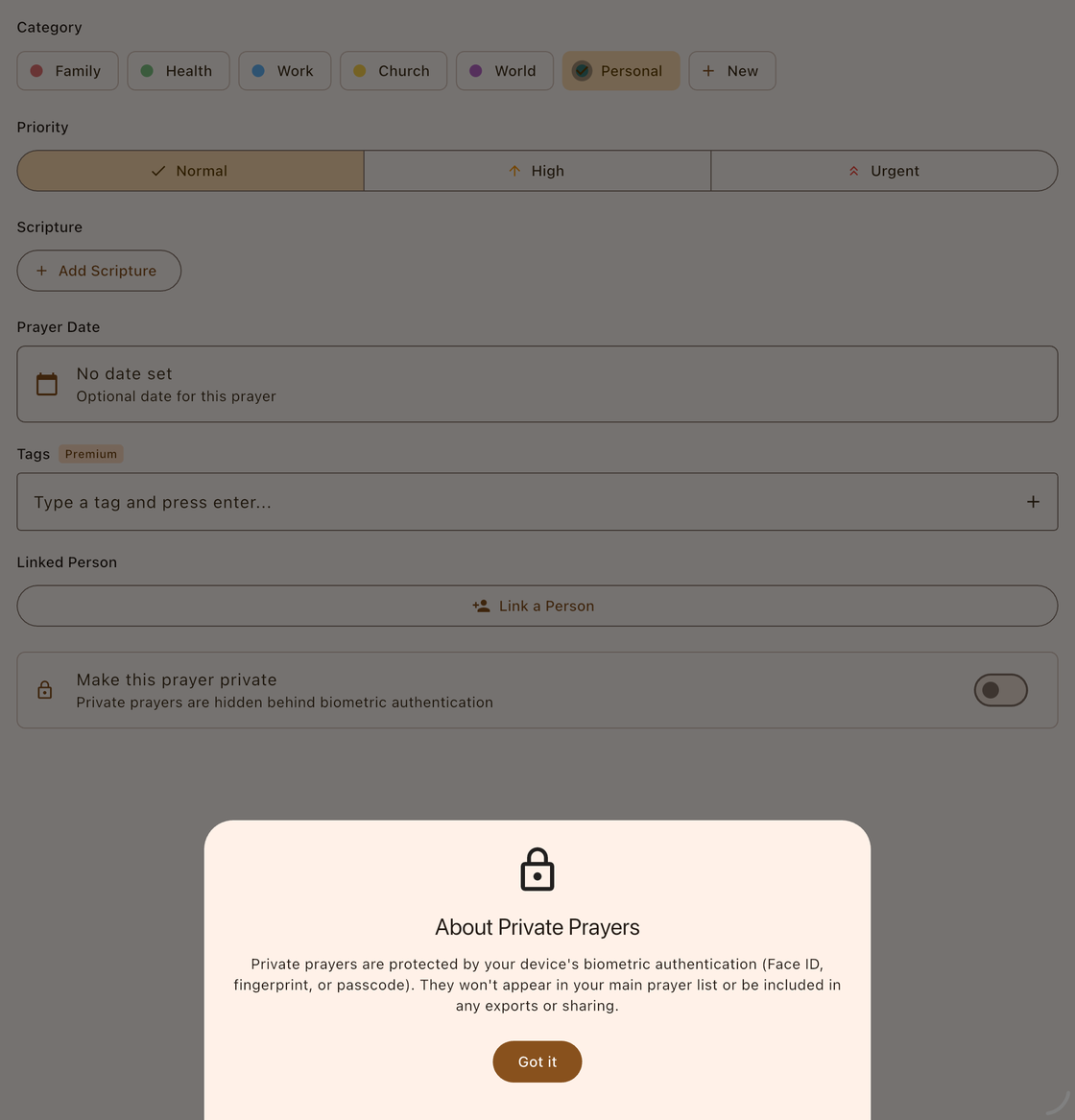
What You Can Do with Private Prayers
The private prayers screen supports all the same actions as the main prayer list:
- Add new private prayers using the + button.
- View full prayer details.
- Edit prayer title, description, category, and other fields.
- Mark as answered with an answer note and date.
- Archive prayers that are no longer active.
- Delete prayers permanently.

How Private Prayers Are Protected
Private prayers receive multiple layers of protection:
- Completely hidden from the main prayer list — they never appear alongside your regular prayers.
- Excluded from all exports — private prayers are never included in shared text, PDFs, or Prayer Partner files.
- Automatic locking — the private prayers screen locks automatically when you leave the app. You must re-authenticate each time you return.
- Biometric or passcode required — every access requires Face ID, fingerprint, or device passcode authentication.
Device Compatibility
The private prayers feature requires a device that supports biometric authentication (Face ID or Touch ID) or a device passcode. If your device does not support any of these methods, a message will explain that the feature is unavailable on your device.