View, interact with, and organize your prayers using cards, gestures, and powerful filtering.
Prayer Cards
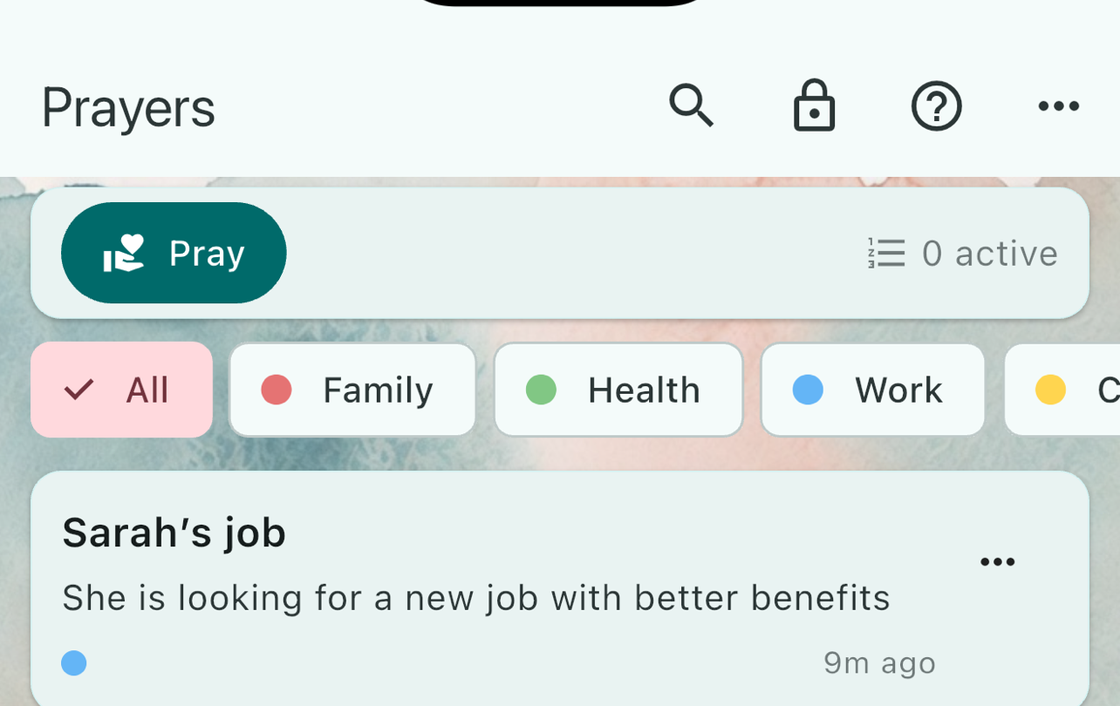
Each prayer in your list is displayed as a card with the following information:
- Title (bold) and description preview (up to 2 lines).
- Priority icon indicating Normal, High, or Urgent.
- Lock icon
 if the prayer is private.
 - Category color dot
 and name.
 - Contact name and avatar (if a person is linked).
- Prayer date with a calendar icon and a green reminder dot if a reminder is set.
- Tags count showing how many tags are attached.
- Relative time (e.g., “2 days ago”) since the prayer was created or updated.
Gestures
- Tap a card to open the prayer detail screen.
- Swipe left to mark the prayer as prayed.
- Swipe right to mark the prayer as answered.
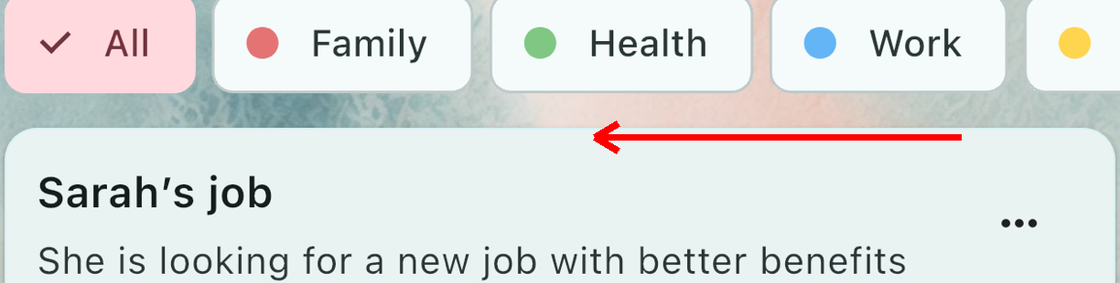
Overflow Menu
Tap the overflow menu on a prayer card to access additional actions:
- Edit — Open the prayer form to modify details.
- Mark as Answered — Record how and when the prayer was answered.
- Archive — Remove from the active list without marking as answered.
- Delete — Permanently remove the prayer (a confirmation dialog appears first).
Prayer Detail Screen
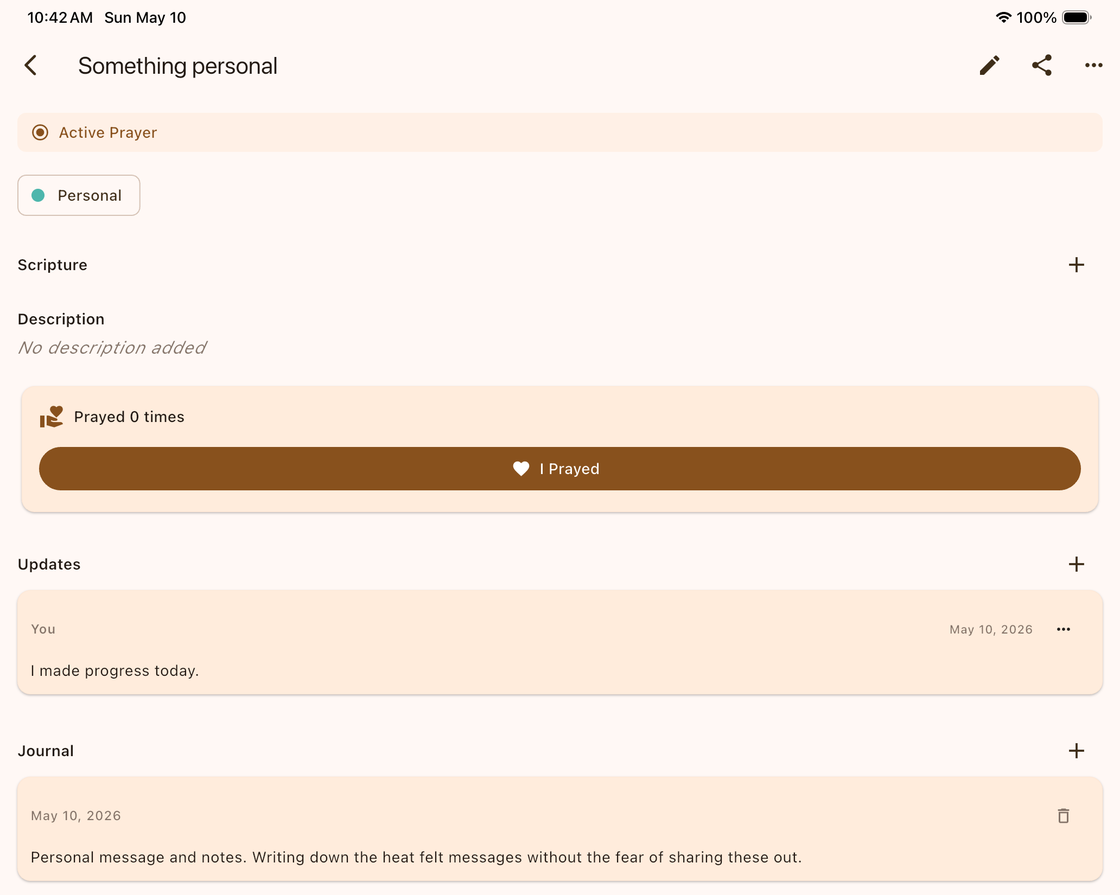
Tap any prayer card to open its full detail screen. The detail screen is organized into the following sections:
Status Banner
- Active — Blue banner.
- Answered — Green banner showing the date answered.
- Archived — Grey banner.
Category, Priority, and Tags
Displayed as colored chips below the status banner for quick identification.
Linked Scripture
If Bible verses have been linked to this prayer, they appear in a Scripture section with the verse reference and text preview. Tap a linked verse to jump to that chapter in the Bible reader. Swipe left on a verse to remove it. Tap the + button to link additional verses from the Bible.
Description
The full prayer description text.
Linked Contact
If a contact is linked, their name appears here. Tap to see all prayers associated with that person.
Prayer Date
Shows the scheduled prayer date and reminder details (time, repeat schedule) if a reminder is set.
Prayer Activity
Displays how many times you have prayed for this request, when you last prayed, and an “I Prayed” button. Tapping the button logs a prayer and shows an “Amen” confirmation.
Answer Section (Answered Prayers Only)
For answered prayers, this section shows the answer note and the date the prayer was answered.
Updates
A chronological list of updates for this prayer. Updates can come from you or from prayer partners who share updates. Each entry shows the author name, date, and content. Tap the + button to add a new update. You can edit or delete updates that you created by swiping left on them.
Journal (Premium)
A list of timestamped private journal entries for personal reflection. Tap the + button to add a new entry. Voice input is supported for hands-free note-taking. You can edit or delete journal entries by swiping left.
Metadata
Shows the created and last updated dates for the prayer.
Actions Bar
- Edit (pencil icon) — Open the prayer form to make changes.
- Share — Share the prayer as text or as a PDF.
- Overflow menu — Additional actions (Mark as Answered, Archive, Delete).
Filtering and Searching

Use category chips above the prayer list to quickly filter by category. Tap the search icon to open the search bar, which supports both text and voice search with live suggestions as you type.
Sort Order
Change the sort order from Settings. The following options are available:
| Sort Option | Description |
|---|---|
| Custom | Drag and drop to arrange prayers in your preferred order. |
| Date Created | Newest prayers appear first. |
| Priority | Urgent prayers at the top, then High, then Normal. |
| Alphabetical | Sorted A to Z by prayer title. |
| Prayer Date | Sorted by the scheduled prayer date. |
| Last Updated | Most recently updated prayers appear first. |